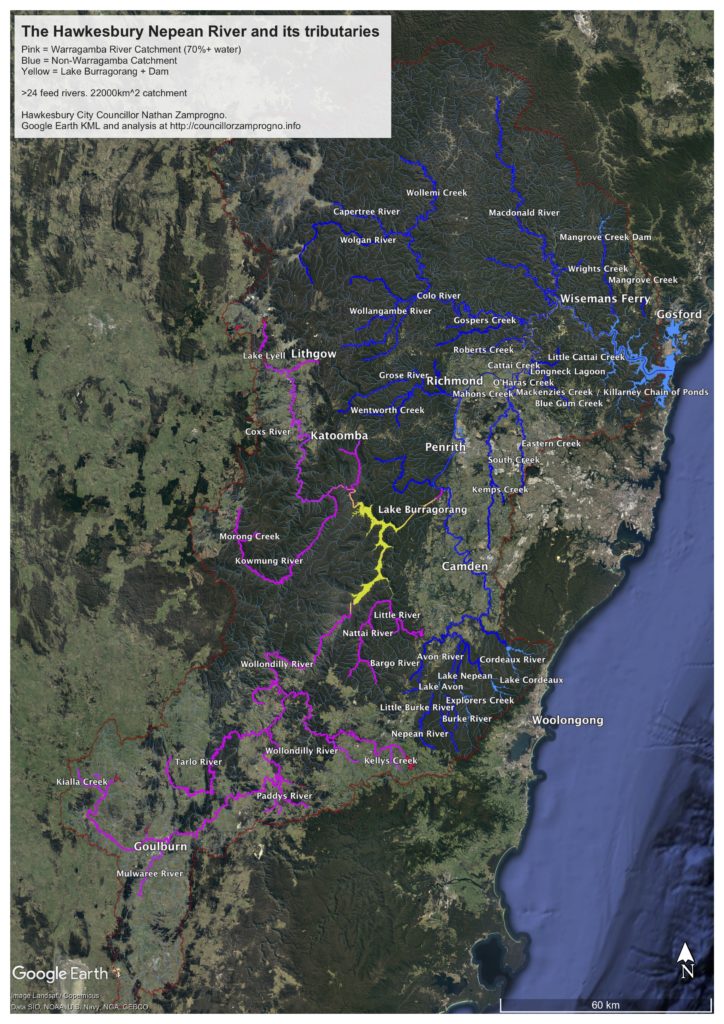
A Google Earth Map of the Hawkesbury-Nepean River
This page represents an old (2018) project where I created an interactive map of the catchment of the Hawkesbury-Nepean river system that can be downloaded as a .kmz or .kml file and opened in the Google Earth Pro program.
This is still a perfectly wonderful idea, and Google Earth is still around and is still the bomb.
However, time has marched on. All of the functionality (and in fact more) can be had through a well crafted website. I have greatly updated the geospatial data and included things like flood extent simulation, which can all be found HERE.
However, if Google Earth Pro is still your thing, this page is here for you.
In my role on Hawkesbury Council and the Hawkesbury River County Council, I’ve long sought a good visualisation of the entirety of the complete catchment of the Hawkesbury-Nepean River, its feed-rivers, and a distinction between those parts of the catchment laying behind and downstream from Warragamba Dam.
I couldn’t find one, so I’ve made my own, gleaned from a variety of geospatial databases.
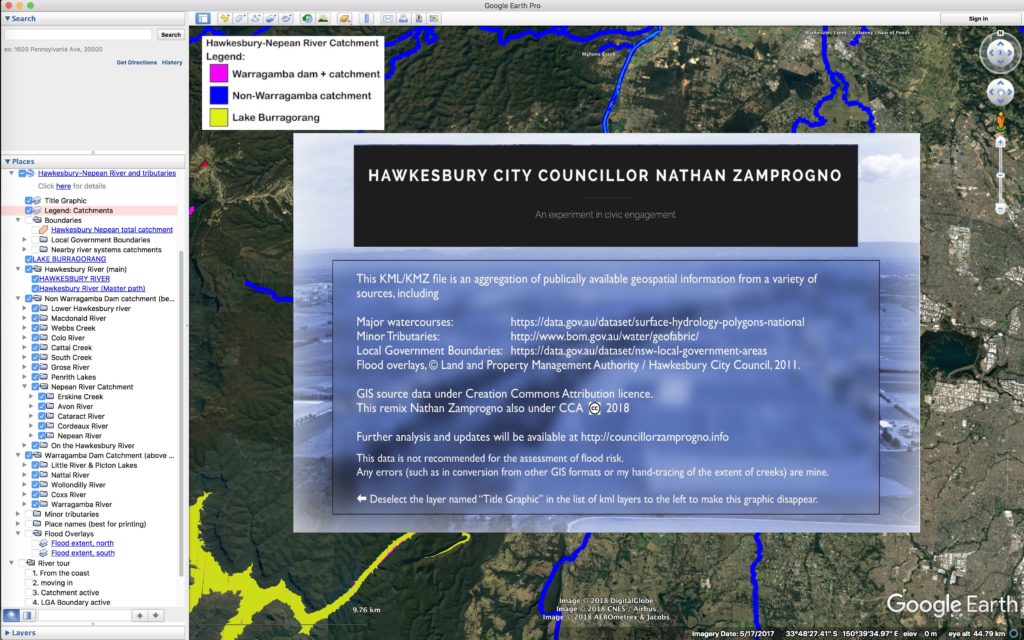
This page offers it to you in a variety of formats.
By far the best way to view this is in the free Google Earth Desktop application, available here for Mac and PC.
The map is in what is called an “overlay” in the standard Google Earth .kmz format. The file (4.6Mb) can be downloaded at the following link:
https://councillorzamprogno.info/wp-content/uploads/2018/Hawkesbury_Nepean_River_and_tributaries.kmz
Once downloaded to your computer, double-click the file (or choose File… Open) to launch the map in Google Earth. If you get an error, then you don’t have Google Earth installed yet.
The overlay is designed to allow you to toggle various colour-coded and labelled components of the system, along with useful boundaries such as the limits of the Hawkesbury-Nepean River and nearby catchments, local government boundaries, etc.

Google are also rolling out a browser-based version of Google Earth, but you must be using the Google Chrome Web Browser to use it. If you are currently using this version, there is a way to do it by going to Projects –> New Project –> Import KML. You would then upload the .KML file you downloaded to your computer earlier. but realise that there many features you will not see owing to the limited nature of the web interface. Here’s a screenshot of where you’d go looking:
Download a PDF version of the map showing the highlights by clicking the thumbnail below.